

.Are you Thinking of How to create a high paying Blog in 2025
Don’t worry i have complete
In this step-by-step guide, I’ll show you how to start the most popular type of blog — a self-hosted WordPress blog the right way.
Ready? Let’s get started!
Disclosure: Our website is reader-supported. If you purchase any service through our partner links, we may earn a commission at no extra cost to you.
Introduction
Blogging is one of the Most Profitable business ,
if you want to want to start a blog atleast you know few things
Here are Few basic questions that every new blogger wants to know before start their first blog:
What is a blog?
A blog is an online platform where individuals or businesses publish content on specific topics. It can be used for personal storytelling, sharing expertise, or even making money
True purpose of a blog is to inform, educate, and entertain a user, so they will come back for more engaging content.
Blogs typically include articles, images, and sometimes videos, allowing readers to engage and interact. In 2025, blogging is more dynamic than ever, with options for monetization and audience growth through social media and SEO.
I Don’t have any coding experience; can I start blogging?
Yes, you can , you don’t need coding knowledge to start a blog.
This guide is Specially for beginners Who have Zero Knowledge about blogging
Do I need to be a Professional writer to start a blog?
No need to be a Professional writer to start a blog ,
if you know basic English that is enough to start a blog .Blogging is about sharing your own perspective and connecting with your audience.
Focus on the content you want to post
Can I make money with my blog?
Yes, you will make money regularly, depends on the content you post
These are few ways to make money you can do affiliate marketing, write sponsored posts, sell ebooks, sell physical goods, and advertisers will approach you to promote their products through your blog,
How much does it cost to start a blog?
Starting a blog can be quite affordable, but the cost depends on your goals and the tools you choose. Here’s a breakdown of common expenses:
- Domain Name: $10–$15 per year
- Website Hosting: $5–$25 per month
- WordPress Theme: Free to $100 per year
- Plugins & Tools: Free to $200 per year
- Content Creation (if outsourcing): Free to $500 per month
- Email Marketing: Free to $200 per month
- SEO & Social Media Tools: Free to $100 per month
If you’re just starting out, you can keep costs low by using free themes and plugins, but investing in hosting and a domain name is essential for a professional blog. Some platforms even offer free blogging options, though they come with limitations.
Step 1: Pick a Blog Topic
If you have a business, company, or organization, your blog topics should be about your product or service so you can promote them.
If you’re an individual, choose a topic you like to discuss, which is called the “Blog Niche.” The blog niche is the specific topic of your blog, like Food, Travel, Tech, or something you enjoy writing about.
Here are also some other popular blog topics you might want to think about:
- Beauty and Fashion
- DIY and Crafts
- Health and Fitness
- Home Decor
- Education
- Food
- Travel
- Tech
- Parenting
- Lifestyle
- Finance
Choose a topic which you like to post regular
Step 2: Choose a Blogging Platform
Select a platform that suits your needs. Popular options include WordPress, Blogger, Wix, and Dorik. WordPress remains the most flexible and widely used choice.
You have multiple choices for blogging platforms. Some are easy to use, while others have limited customization options and require a significant investment to upgrade.
Step 3: Get the Best Web Hosting
Your domain name should be memorable and relevant to your blog’s niche. Hosting services like Bluehost, Hostinger provide reliable options.
you need WordPress to handle your blog content and also a web hosting service to deliver it to your readers.
The Web host will make your blog live and accessible on the internet by providing a space for it.
if WordPress is a sim card, webhost is like WiFi, without wifi we can’t get connection, without, webhosting no one able to see our website, blog or online store.
I heard Hostinger giving free domain for New members .
check it out here
Step 4: Set Up Your Blog
Blue host is a web hosting provider that is easy for beginners to use, offers great web hosting packages for starting your WordPress blog without all the confusion.
→Click here and hit the yellow “Get Started” button
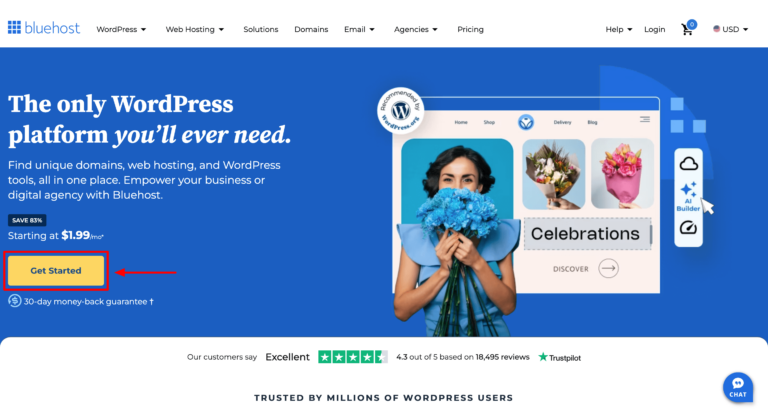
Blue Host is also the most recommended host by WordPress and has been around for a long time. It already powers millions of websites, so you don’t have to worry about anything.
From the moment you sign up, Bluehost guides you through an intuitive setup process.
Mainly, they will provide you with the following benefits:
- Free Domain Name for the first year
- Free SSL Certificate included
- One-click WordPress installation
- SSD Web Storage for faster performance
- 24/7 live expert support
- 30-day money-back guarantee
Choose the package below
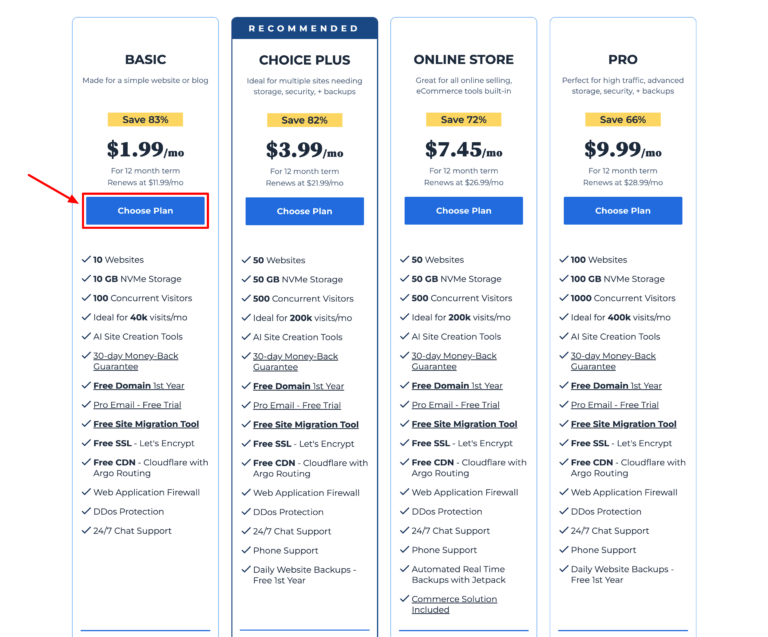
choose smaller one and later you can upgrade slowly
enter the domain (your blog address) you want to use. It can be your name, company, organization name, or any name you want for your blog domain.
Bluehost gives you a free domain for the first year and also includes a free SSL certificate. This means you can start your blog without spending any extra money.
You could save around $30.
choose a short and easy-to-remember domain name.
After choosing domain complete your checkout process.
select a pricing plan based on how early you want to pay. You can choose between paying for 12 or 36 months in advance.
If you pay for 1 year upfront, your yearly expenses will be only $23.88, and there’s a 30-day money-back guarantee, so no need to worry about any risks.
Furthermore, watch out for pre-ticked extra package features. I suggest keeping the “Domain Privacy Protection” option. The other options aren’t really needed for beginners, but you can select them if you prefer.What is Domain Privacy Protection?
If you don’t want any other extras, make sure you’ve unchecked the boxes.
Finally complete your hosting purchase. Now, you need to enter your contact information, set a password for your Bluehost account, and then provide your billing information.
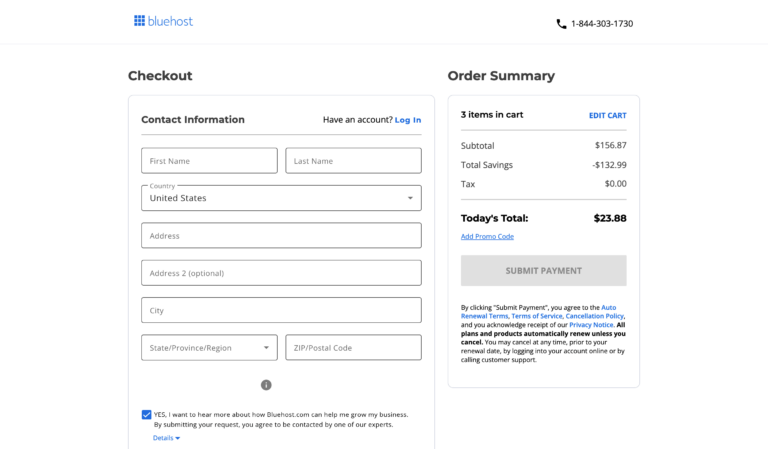
click the “Submit Payment” button when it turns blue!
Just wait for a few minutes as they confirm your purchase, and don’t forget to check your inbox for the confirmation, summary, and login details.
If nothing goes wrong, you’ll see WordPress start installing by itself.
Next, log in to your Bluehost account using the password you recently created.
Check your inbox for the user ID that Bluehost sent you when you completed your hosting purchase. The password is the one you created during that same step.
Step 5: Get Started with WordPress
Lets start keep in mind that you’ll need two sets of login information: save these
- Bluehost login details: These are used to manage your hosting account settings and pay your hosting bill.
- WordPress login details: These are used to access the WordPress admin area, where you can write blog posts and manage your blog.
Again, the welcome email that you got has everything you need to log in to WordPress, so you should double-check it.
But since we spend a lot of time on WordPress, you’ll usually need the WordPress username and password to log in to the WordPress dashboard.
Alrighty then, welcome to the WordPress Dashboard!
This is where you can share content like posts and images on your blog. We can also add WordPress plugins to give your blog extra features.
To access your new WordPress site through Bluehost, after you log in, navigate to “My Sites,” and select your WordPress site to manage your content.
Alternatively, you can directly access your WordPress admin dashboard by going to yourdomain.com/wp-admin and entering your WordPress username and password.
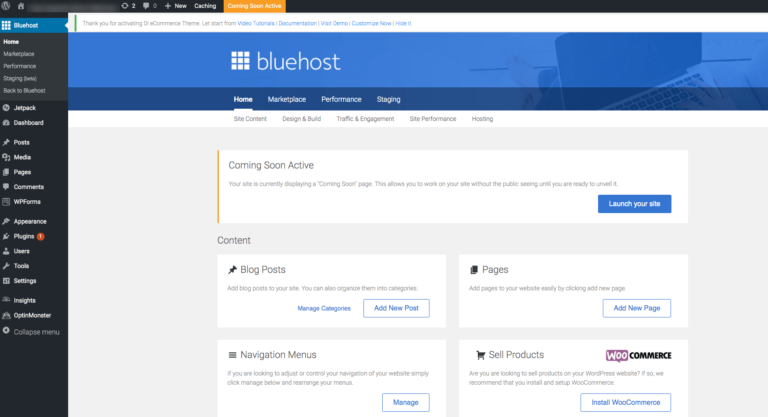
Here are some settings you should look at to make sure you’re heading in the right direction.
For now, go to Settings > General
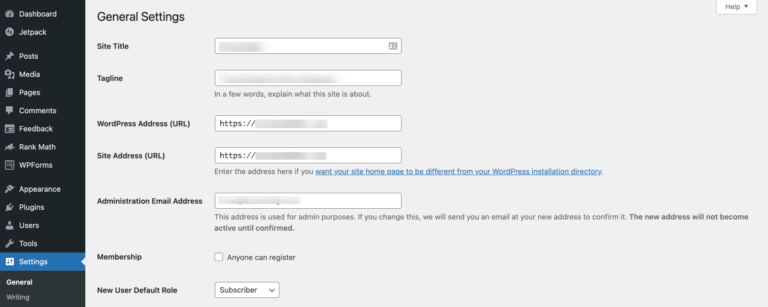
- Site title and tagline: Make sure your site title and tagline are correct. If not you can edit them here. Your tagline should be a short phrase that describes your site or mission well. These can be modified whenever needed!
- Site address: Make sure it is started with HTTPS:// instead of HTTP://. (If you need help with this, simply contact Blue Host support to make sure your SSL certificate is valid.)
- Admin email: You can change the administrator email by entering a new one. If you’ve changed it you have to confirm it. Make sure that your email is active.
- Membership: Do nothing if you are not going to register new members for your blog. Just leave it unchecked.
- Timezone, date: You can change the time zone as you want. But remember, this will be very important if you are going to schedule blog posts.
Next, go to Settings > Permalinks and make sure “Post name” is selected.
This structure is easy for readers to understand and is suitable for your blog.
Remember to click “Save” if you have made any changes there!
Install important plugins. First, I recommend installing the Yoast Seo It helps you write blog posts that are SEO so you can attract more readers from search engines like Google and Bing.
o install a WordPress plugin:
- Go to Plugins > Add New.
- Search for “Yoast SEO” on the search bar.
- Click “Install Now” and “Activate” it.
I recommend installing the “WordFence” plugin to secure your blog from attackers and the “Contact Form 7” plugin to add a contact form to your blog.
Most WordPress plugins come with a setup guide, so there’s no need to worry.
Step 6: Customize and Launch it
go to Appearance > Themes > Add New.
From there, you can search for and select your preferred theme.
Alternatively, if you have already purchased a premium theme from a third-party developer, you can upload it there.
Choose any of the theme
Once you’ve selected and applied your chosen theme, navigate to Appearance > Themes > Customize to fine-tune your blog’s looks.
The customizer lets you make real-time adjustments to the layout and design of your site.
you can customize your site’s header by adding a logo or menu items, modifying the blog layout, adding widgets to the sidebar, and changing the footer area without needing to write any code.
I know that it may feel unfamiliar and overwhelming at first. I’ve been in the same situation as you are now.
Take your time to explore and you’ll find that it’s easy to learn everything.
Now you can start writing your first blog post. If you’re not sure what to write, just start writing something related to your blog topic.
If you’re feeling a bit lost, don’t worry!
Take a moment to read this guide on how to start your first blog post. It’s filled with all the essential details you need as a beginner blogger.
If you’re looking to create a new post, simply head over to the “Posts” section and click on “Add New.”
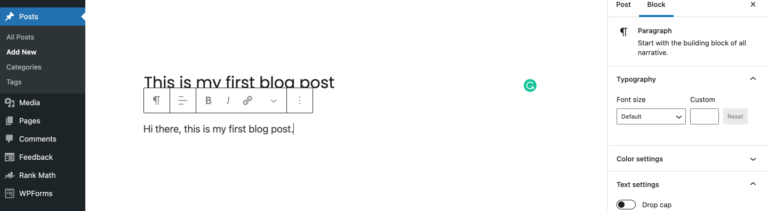
You can edit your blog posts whenever you want, so there’s no need to worry about making them perfect right away.
Also, make sure to include important pages for your blog.
To create a new page, go to Pages > Add New.
It’s a good idea to have an About Page, Contact Page, Disclaimer Page, Privacy Policy Page, and Terms of Service Page for transparency.
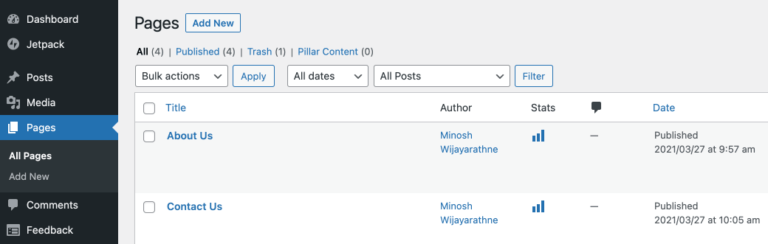
Let’s get ready to launch your new blog.
However, before we proceed, there’s a small task that needs to be taken care of – removing Bluehost’s “coming soon” page.
Here’s what you need to do:
- Log into your blog’s WordPress Dashboard (yourblog.com/wp-admin).
- Navigate to Settings > General.
- Scroll down until you find the “Bluehost Coming Soon Page” option and turn it off.
- Don’t forget to click “Save.”
Now, open a new browser window and enter your domain name to see your brand-new blog in all its glory.
That’s it! You’re all done.
Your blog is now ready to be shared with the world.
I’m so happy for you! You did it! Now you have the most popular type of blog — a self-hosted WordPress blog.
Happy blogging